> For the complete documentation index, see [llms.txt](https://docs.stammer.ai/stammer.ai-docs/llms.txt). Markdown versions of documentation pages are available by appending `.md` to page URLs; this page is available as [Markdown](https://docs.stammer.ai/stammer.ai-docs/chat-ai-agents/ai-chat-widget/customize-chat-widget-apperance.md).
# Customize Chat Widget Apperance
This allows you to full customize the look, color, appearance and feel of the embeddable chat widget.
To customize the appearance of your AI agent's chat widget, click into any AI agent and then navigate to the Appearance tab. Here you will see a whole suite of options to customize pretty much every aspect of the chat widget.
On the right hand side there is a live preview of what your changes will look like.
## Font Size
Font size for the chat text in pixels.
## Font Family
Font family for the chat text.
## Subheading
Subheading for the chat widget, such as 'Online', 'Available', etc.
## Chatbot Icon
Displayed in the chat widget header as the chatbot image.
Supported file extensions are png, jpg, jpeg and Ideal logo size is 32x32 pixels.
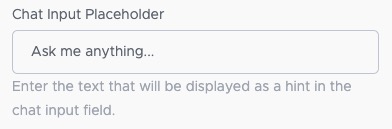
## Chat Input Placeholder
Enter the text that will be displayed as a hint in the chat input field.
## Send Message Button
Upload a custom send message button. Defaults to a standard button if not provided. Supported file extensions are png, jpg, jpeg and Ideal logo size is 32x32 pixels.
## Customize Colors
This section allows you to customize all the different colors of the platform.
## Widget Boarder
Border radius of the widget in pixels.
## Widget Background
Widget Background Preference
## Size of the Chat Widget
Adjust the size of the chat widget to me small, medium or large.
## Tagline
## Chat Bubble Icon
This is the icon that appears on your site before a user clicks to open the chat.
## AI Agent Status Messages
Enable to show status messages from the AI agent in the chat widget which are displayed to the user while the AI is processing a response.
## Chat Avatar Icon
This image appears inside the chat window next to your bot’s messages.